


Can Users Install Applications on WordPress? Everything You Need to Know
Are you new to WordPress and wondering whether or not you can install applications to enhance your website’s functionality? This guide will demystify the process and explain everything you need to know about installing applications on WordPress, along with tips to maximize their potential.
WordPress.com vs. WordPress.org: Key Differences in Application Installation
Before we explore whether users can install applications on WordPress, it’s important to understand the critical difference between WordPress.com and WordPress.org—two platforms often confused because they share the same name.
What is WordPress.com?
WordPress.com is a hosting platform that takes care of the technical side of managing a website. For beginners, this can be a great way to start because of its ease of use. However, application installation on WordPress.com is limited by plan. Free and personal-tier plans do not allow you to install plugins or custom applications, while the Business and eCommerce plans provide this feature.
What is WordPress.org?
On the other hand, WordPress.org is the self-hosted version.It allows users to build their website independently and provides complete freedom to install plugins, themes, and even custom applications. The tradeoff is that you need to manage hosting, security, and backups yourself.


If installing diverse applications is a priority for you, opting for WordPress.org or upgrading your WordPress.com plan to Business or higher is the way to go.
What Are Applications in WordPress?
The term “applications” on WordPress usually refers to plugins, themes, and third-party tools that extend your site’s capabilities. These might include functionalities such as contact forms, SEO tools, social media integrations, eCommerce platforms, and more.

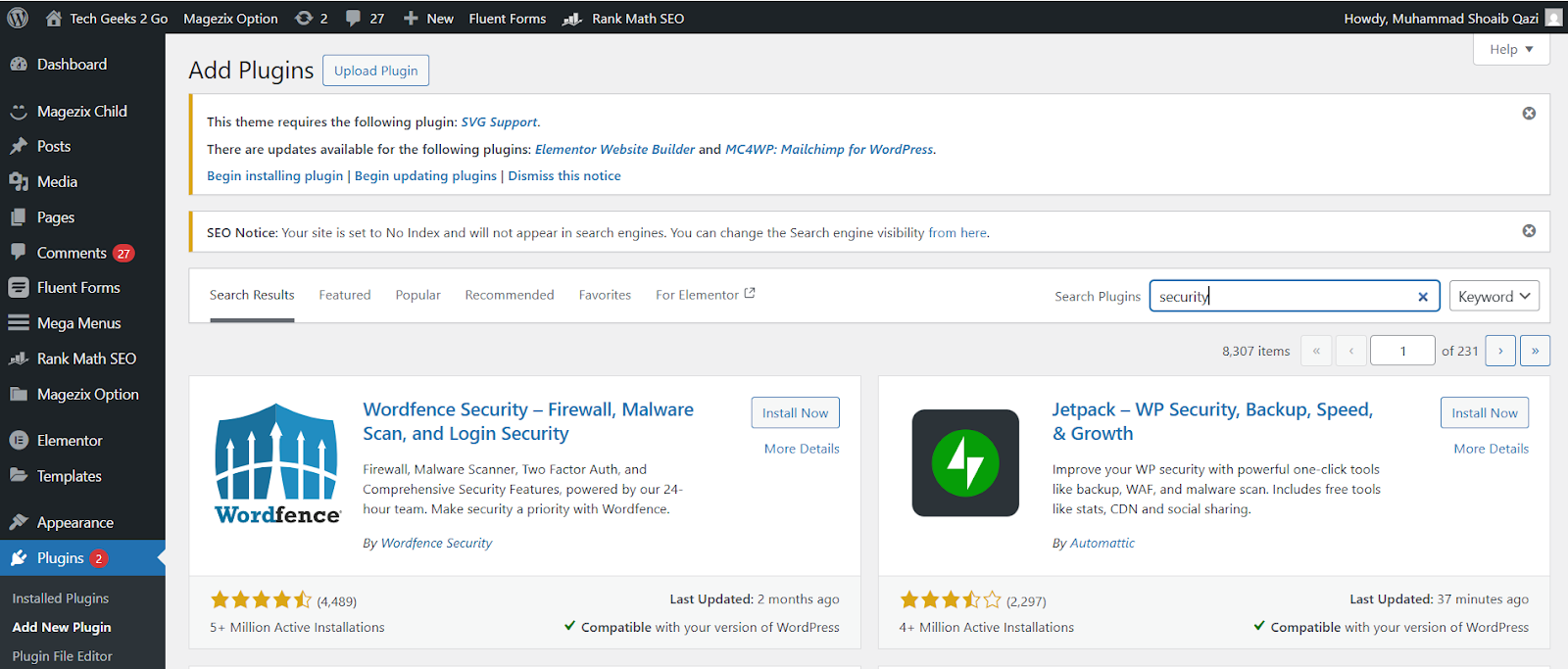
For instance, using an SEO plugin like Yoast can help optimize your content for search engines, while a plugin like Elementor offers tools to create visually appealing pages with ease. Think of these as apps on a smartphone—each one adds unique features to make your website more powerful and efficient.
Can Users Install Applications on WordPress?
Short answer? Yes, but with conditions.
- On WordPress.com:
- Free and Personal Plans do not allow third-party plugins or applications.
- Business and eCommerce Plans allow plugin installation and integration of custom applications.
- On WordPress.org (Self-hosted):
- There are no restrictions. You can install any custom applications or plugins you like.
If you’re using a free WordPress.com plan, you won’t be able to install extra applications. However, upgrading to a Business plan opens up extensive functionality that includes the ability to add plugins and integrate directly with third-party tools.
Applications That May Be Installed on WordPress
WordPress hosts an extensive library of applications spanning several categories. Here’s a look at the most common types you can add to your site:
- SEO Plugins
Improve your content’s visibility with apps like Yoast SEO or Rank Math. These provide keyword optimization, metadata management, and advanced analytics to help your content rank higher in search results.
- eCommerce Plugins
Platforms like WooCommerce transform your WordPress site into a fully functioning online store, complete with payment gateways, inventory management, and shipping calculators.
- Contact Forms
Enhance communication with simple drag-and-drop builders like WPForms or Formidable Forms.
- Performance Optimizers
Use caching plugins like WP Rocket or W3 Total Cache to speed up your website and improve user experience.
- Themes and Design Tools
Apps like Elementor or Divi help you design pages easily by offering a drag-and-drop editor, stunning templates, and prebuilt elements.
- Community-Building Tools
Build forums or membership sites with plugins like bbPress or BuddyPress to foster a community around your content.
Installing Third-Party Applications on WordPress
Here are step-by-step instructions on how you can install plugins (applications) on both WordPress.com (Business plan or higher) and WordPress.org.
How to Install Plugins on WordPress.com
- Log in to your WordPress dashboard.
- Navigate to the Plugins section in the menu.
- Click on Add New to open the WordPress plugin marketplace.
- Browse or search for the desired application.
- Click “Install Now” and subsequently activate the plugin.
- Once activated, configure the settings as needed.
How to Install Plugins on WordPress.org
- Log in to your admin dashboard.
- Locate and click on Plugins → Add New.
- Use the search bar or upload a plugin file.
- Click Install Now and Activate Plugin.
- Adjust settings or integrate with your site.
For custom applications, you may upload .zip files directly, but note that these often come with additional setup instructions from the developer.
Important Considerations When Installing Applications on WordPress
1. Security
Only install plugins from reputable sources like the official WordPress Plugin Directory. Third-party apps from unknown sellers can introduce vulnerabilities into your website.
2. Resource Usage
Too many plugins can slow down your site by consuming resources. Prioritize apps essential to your goals and remove what you don’t need.
3. Compatibility
Ensure plugins are compatible with your current WordPress version and any other installed applications to avoid conflicts.
4. Updates
Keep your plugins up to date to ensure performance improvements and security patches are applied.
Common Mistakes to Avoid
- Installing Too Many Apps
While it might be tempting to add every tool under the sun, doing so can overwhelm your site and make troubleshooting difficult.
- Ignoring Reviews and Ratings
Only install plugins with high ratings, positive reviews, and consistent updates.
- Skipping the Backup
Always back up your site before installing a new application. This protects you from potential issues or conflicts.
- Overlooking Application Settings
After activating a plugin, spend time exploring the settings to customize the functionality to your needs.
Why Choosing the Right Applications Matters
Applications play a huge role in elevating your WordPress site from basic to professional. By carefully choosing and managing your plugins and third-party tools, you ensure your site functions flawlessly while serving the needs of your visitors.
If you’re just starting out, consider your goals carefully and opt for a WordPress.org setup or upgrade to a premium WordPress.com plan to unlock full application functionality.
Take Action
Installing applications on WordPress doesn’t have to be daunting. With manageable steps and a clear understanding of what applications serve your goals, you can transform your website into a powerful, well-optimized tool. Start by exploring popular plugins in the WordPress plugin directory—your ideal setup is just a click away!